
Question

LiveDoc if/then logic based on one dropdown selection

  • Nov 6, 2026 4:22 PM UTC
  • 4 replies
  • 28 views

Forum|alt.badge.img+1

We have an existing LiveDoc where the user can customize a few fields with dropdown values.  We are wondering if there is a way to use If/then logic so they only have to select the industry and then the 4 variable fields will populate accordingly.  I feel like there is a way, but I can’t figure out where to do it and I was searching Seismic Community and University for some reference material, but came up empty.


Here is a little more detail.  Currently we have four drop down fields:


Current field

Current dropdown options

Preferred logic

Industry

Consumer, Energy, Healthcare

KEEP SINGLE DROPDOWN

Customer type

Consumers, Members, Patients

If industry = consumer, then "consumers";
If industry = energy, then "members";
If industry = healthcare, then "patients"

Business type

Businesses, Energy providers, Healthcare payers

If industry = consumer, then "businesses";
If industry = energy, then "energy providers";
If industry = healthcare, then "healthcare payers"

Limited industry

(leave blank), Energy, Healthcare

If industry = consumer, then "";
If industry = energy, then "energy";
If industry = healthcare, then "healthcare"

4 replies

Forum|alt.badge.img+1

Hi ​@nicoledastoor,

Thank you for outlining the if/then logic you want to incorporate into your LiveDoc. This makes it very straight forward to understand, and build.

First, assumptions/questions:

  • Are the assets you want to make available within the LiveDoc tagged as you’ve noted?
    • Do you have an industry custom content tag with the identified options?
    • Do you have a customer type custom content tag, etc.?

If the above assumptions are mapped in your content properties, then I’d recommend the following:

  1. Start with the Question/Statement: Select the desired industry for this presentation:
    1. Question Type: Category
    2. Create three categories aligned to the identified industries (Consumer, Energy, Healthcare)
    3. Select Rules-based
      1. Click on the first Category
      2. Click + Add rule for each Property type
      3. Select the Property(ies) you’ve indicated in your logic above
        1. Example:
          1. Industry Type>Includes>Consumer
          2. Customer Type>Includes>Consumers
          3. Business Type>Includes>Businesses
      4. Repeat the above steps for each of the categories

This approach should provide you that “one click” you want for your target audience.

When they select the category, the LiveDoc will automatically surface the content you’ve designated within the rules. This will also be helpful in that it will dynamically include future assets you upload and tag.

Let me know if there is anything else I can provide, or additional feedback you can share on what I’ve outlined above.

All the best,

Lorien


Forum|alt.badge.img+1

Thank you Lorien,

I think that makes sense but I’m still struggling where to make those definitions, see my follow up questions below, your comment in blue, my follow-ups in red.

First, assumptions/questions:

  • Are the assets you want to make available within the LiveDoc tagged as you’ve noted?
    • Do you have an industry custom content tag with the identified options?
    • Do you have a customer type custom content tag, etc.?
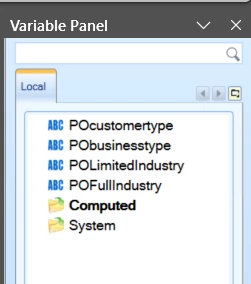
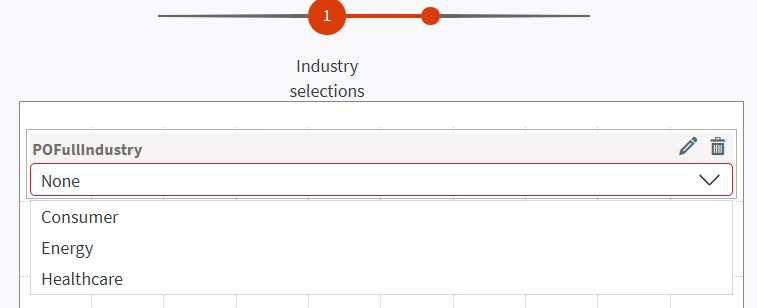
  • I think the answer is yes, here is what I have defined on the PPT side.  In this case, the FULLIndustry field is the only one we want to be a dropdown and the others will compute based on the FullIndustry:


If the above assumptions are mapped in your content properties, then I’d recommend the following:

  1. Start with the Question/Statement: Select the desired industry for this presentation:
    1. Question Type: Category
    2. Create three categories aligned to the identified industries (Consumer, Energy, Healthcare)
      I believe this is covered in this piece on the Seismic side, please confirm:


    3. Select Rules-based
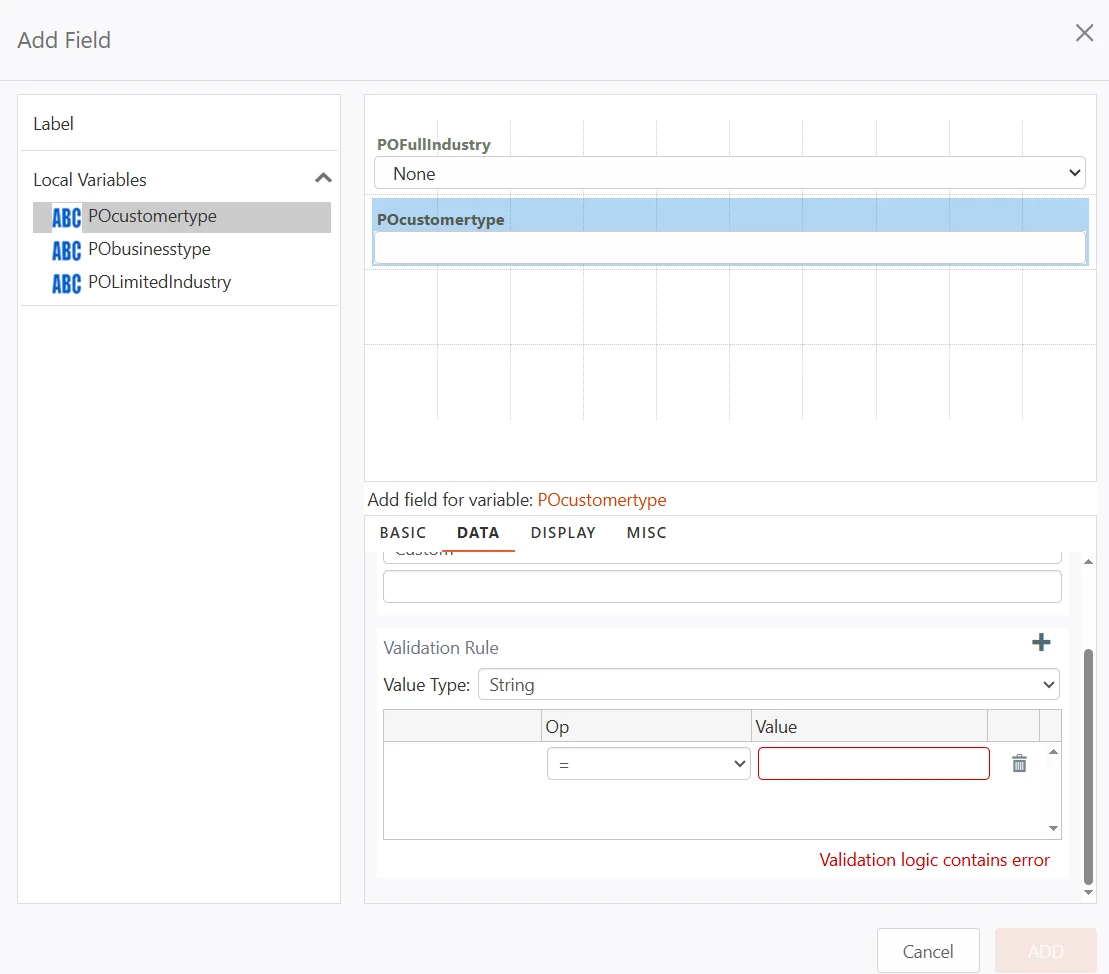
      This is where I get lost - where am I doing the steps you mention below?
      1. Click on the first Category
      2. Click + Add rule for each Property type
      3. Select the Property(ies) you’ve indicated in your logic above
        1. Example:
          1. Industry Type>Includes>Consumer
          2. Customer Type>Includes>Consumers
          3. Business Type>Includes>Businesses
      4. Repeat the above steps for each of the categories

Forum|alt.badge.img+1

Hi ​@nicoledastoor , 

I realize I made an assumption that you were using Presentation Builder, and not Document Generator in PowerPoint. 

That said, here’s how you can create if/then Computed Variables to populate the content based on the Industry selection:

Step 1: Create each computed variable

Repeat for each of the three variables:

  1. Right-click in the Variable Panel and select Add Computed Variable.
  2. Basic tab: Enter the name (for example, CustomerType) and set Type to STRING. Description is optional.
  3. Expression tab: Select Custom and paste the formula from the table below. Use Excel syntax without the leading =.
  4. Check the Value field at the bottom. If it shows invalid, confirm that the formula is a valid Excel function and that [[POFullIndustry]] exists in the document.
  5. Format tab: Leave the text format as is, or adjust it if you want capitalization changes.
  6. Click OK.
Variable name Custom expression
CustomerType IF([[POFullIndustry]]="Consumer","consumers",IF([[POFullIndustry]]="Energy","members",IF([[POFullIndustry]]="Healthcare","patients","")))
BusinessType IF([[POFullIndustry]]="Consumer","businesses",IF([[POFullIndustry]]="Energy","energy providers",IF([[POFullIndustry]]="Healthcare","healthcare payers","")))
LimitedIndustry IF([[POFullIndustry]]="Consumer","",IF([[POFullIndustry]]="Energy","energy",IF([[POFullIndustry]]="Healthcare","healthcare","")))

Each formula reads as "if Industry is X, return Y; otherwise check the next option." The final "" is a fallback that returns blank if nothing matches, such as before a seller has picked an industry.

Step 2: Place the variables on your slides

Replace the static wording on each slide with the matching placeholder in double brackets:

  • "…serving our patients…" becomes "…serving our [[CustomerType]]…"
  • "…for healthcare payers…" becomes "…for [[BusinessType]]…"
  • "…healthcare trends…" becomes "…[[LimitedIndustry]] trends…"

Because LimitedIndustry returns blank for Consumer, watch for double spaces or stray punctuation in the surrounding text. For example, write "[[LimitedIndustry]] trends" so the sentence still reads cleanly with a blank value, or confirm the spacing in testing.

The strings/equations should create your If/Then samples. Let me know if this worked, or not.

Best,

Lorien


Forum|alt.badge.img+1

Hi ​@nicoledastoor , 

I realize I made an assumption that you were using Presentation Builder, and not Document Generator in PowerPoint. 

That said, here’s how you can create if/then Computed Variables to populate the content based on the Industry selection:

Step 1: Create each computed variable

Repeat for each of the three variables:

  1. Right-click in the Variable Panel and select Add Computed Variable.
  2. Basic tab: Enter the name (for example, CustomerType) and set Type to STRING. Description is optional.
  3. Expression tab: Select Custom and paste the formula from the table below. Use Excel syntax without the leading =.
  4. Check the Value field at the bottom. If it shows invalid, confirm that the formula is a valid Excel function and that [[POFullIndustry]] exists in the document.
  5. Format tab: Leave the text format as is, or adjust it if you want capitalization changes.
  6. Click OK.
Variable name Custom expression
CustomerType IF([[POFullIndustry]]="Consumer","consumers",IF([[POFullIndustry]]="Energy","members",IF([[POFullIndustry]]="Healthcare","patients","")))
BusinessType IF([[POFullIndustry]]="Consumer","businesses",IF([[POFullIndustry]]="Energy","energy providers",IF([[POFullIndustry]]="Healthcare","healthcare payers","")))
LimitedIndustry IF([[POFullIndustry]]="Consumer","",IF([[POFullIndustry]]="Energy","energy",IF([[POFullIndustry]]="Healthcare","healthcare","")))

Each formula reads as "if Industry is X, return Y; otherwise check the next option." The final "" is a fallback that returns blank if nothing matches, such as before a seller has picked an industry.

Step 2: Place the variables on your slides

Replace the static wording on each slide with the matching placeholder in double brackets:

  • "…serving our patients…" becomes "…serving our [[CustomerType]]…"
  • "…for healthcare payers…" becomes "…for [[BusinessType]]…"
  • "…healthcare trends…" becomes "…[[LimitedIndustry]] trends…"

Because LimitedIndustry returns blank for Consumer, watch for double spaces or stray punctuation in the surrounding text. For example, write "[[LimitedIndustry]] trends" so the sentence still reads cleanly with a blank value, or confirm the spacing in testing.

The strings/equations should create your If/Then samples. Let me know if this worked, or not.

Best,

Lorien

THANK YOU SO MUCH! That’s what I was missing.  It works wonderfully now.  I appreciate you stepping me through that.